[1] "R version 4.5.2 (2025-10-31)"2 Software Installation & Setup
Welcome! There’s a few things we’d like everyone to try and do before the workshop starts. For this workshop and the following lessons, we need to install the following programs/software in this order (more details below for different operating systems):
Install

Install

Install R Packages & Test They Work
Install Geospatial Packages and

Download Data for the Workshop
Below, we provide extra details appropriate for Windows and MacOSX operating systems. For additional installation options, see here.
2.1 Step 1. Install
R is the underlying statistical computing environment, or the engine we use to do things.
2.1.1 Windows: Download and install R
Go to CRAN and download the R installer for Windows. Make sure to choose the latest stable version. Download the .exe file and double click to install.
- You can click next through the standard dialogs and accept most defaults. But at the destination screen, please verify that R is installing
C:\Program Files\R(version number may vary), and you may need administrative privileges to do this if you’re not working on your personal computer.
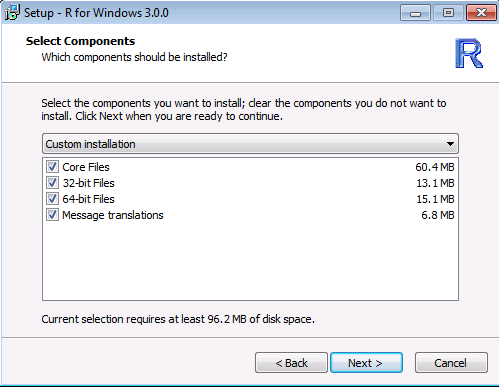
At the “Select Components” screen, you can accept the default and install both 32-bit and 64-bit versions.
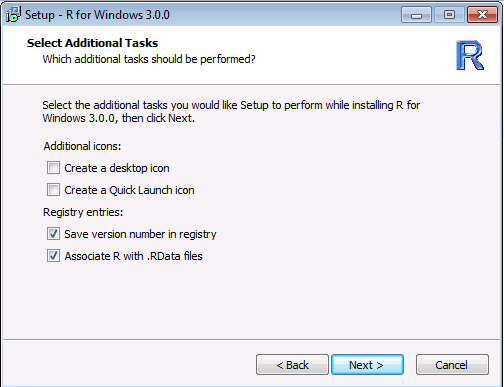
At this screen, uncheck “Create a desktop icon” because non-admin users in Windows will be unable to delete it.
2.1.2 MacOS: Download and install R
2.2 Step 2. Install
Using R alone is possible, but less ideal (and less fun!). RStudio is an open-source graphical Integrated Development Environment or IDE that makes using R much easier and more interactive. In this course, we will use the free RStudio Desktop version.
2.2.1 Windows: Download and install RStudio Desktop (free)
- Download and install from RStudio
- Select RStudio x.yy.zz - Windows Vista/7/8/10 (where x, y, z are version numbers)
- Double-click the installer. It will ask for your administrator credentials to install, so you may need IT assistance if using a work computer.
- Accept all the default options for the RStudio install
2.2.2 macOS: Download and install RStudio Desktop (free)
- Go to the RStudio download page
- Under Installers select RStudio x.yy.zzz - Mac OS X 10.6+ (64-bit) (where x, y, and z represent version numbers)
- Double click the file to install RStudio
- Once it’s installed, open RStudio to make sure it works and you don’t get any error messages.
2.2.3 Check Install!
Once installed, RStudio should be accessible from the start menu. Start up RStudio.
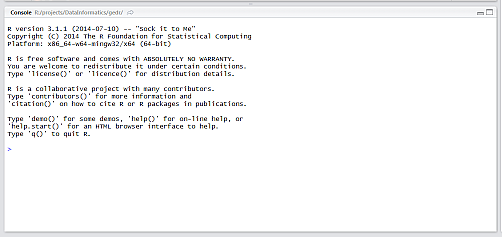
- Find “Console” window: By default the console window will be on the left side of RStudio. Find that window. It will looking something like:
Copy and paste the following code: Once in that console window, copy the code below and paste it into the Console window (just to the right of the little
>). Then hitENTER.version$version.stringVerify your installed R version: Ideally you should be running the latest stable release. If you have an older version, please install the newest version using the instructions above.
Here is what a current R version looks like:
2.3 Step 3. Install R Packages
The core set of packages we will need are as follows. There may be a few more we need to install during the course, but this should be the majority.
We install packages available for all R users from an online repository called CRAN, by pasting the following code into the RStudio Console window and hitting ENTER.
install.packages("tidyverse")
install.packages("viridis")
install.packages("openxlsx")
install.packages("readxl")
install.packages("lubridate")
You may see a message
There are binary versions available but the source versions are later:followed by a list of the packages you are trying to install. This is usually followed by this message:
Do you want to install from sources the package which needs compilation? (Yes/no/cancel)Compilation means the code associated with the package needs to be translated into R and built for your operating system. Generally we can use the binary option, so after that message type “No” and hit “Enter” on the keyboard. In some cases we do need/want to compile the package to get the most recent updates. For this course, try installing from binary (type No) first!
You may see this:

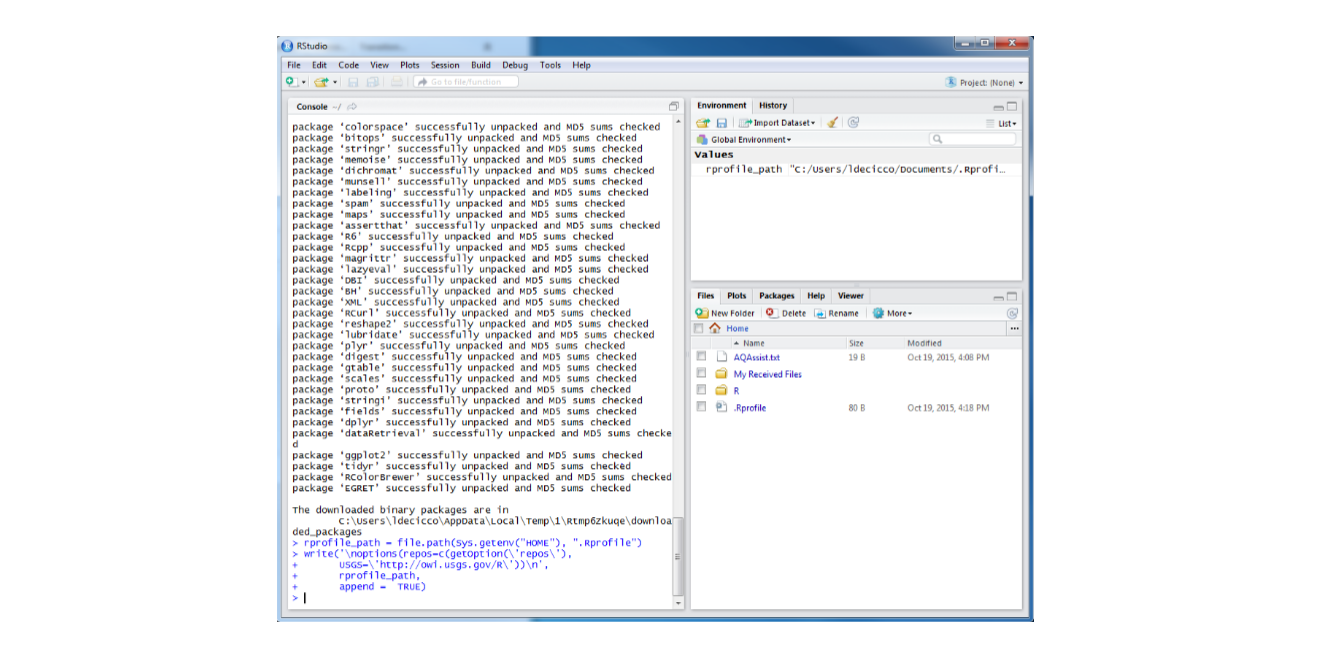
That’s OK! There’s a dialog box hiding behind RStudio asking if you want to create a personal folder in your Documents folder. Click Yes. It will look something like this when done:
2.4 Step 4. Install Geospatial Packages
For some of the mapping and spatial lessons, we need a set of geospatial tools/packages. For the majority of the content we will cover, this requires installation of the sf package. When we run the lines below, we may get a question in the Console that is preceded by a list of package names and columns with binary, source, and needs_compilation. That’s ok!
The First Option should be to try and install without compilation. So, if you run the lines below:
install.packages("sf")
install.packages("mapview")
And you see a message similar to below (yours will probably look different!!):
 There are binary versions available but the source versions are later:
          binary source needs_compilation
sf         1.0-6  1.0-7             FALSE
mapview   2.10.3 2.11.0              TRUE

Do you want to install from sources the packages which need compilation? (Yes/no/cancel)
Just make sure to type “No” at the end of the line and hit Enter!
2.4.1 Installing from Source (with Compilation)
However, more commonly, we may need to install/update from source to have the most updated functions and options from a package (don’t worry if you have no idea what this all means yet!). This generally means the code needs to be translated and built or compiled so your computer can interpret it. To do so, we need to follow instructions below for the operating system of your choice.
2.4.2 Windows Geospatial Instructions (from source):
To install sf successfully from source, Windows users will need to install Rtools. Download the 64-bit compiler. Use the “R-release” version, not the R-devel version. R-release is the stable version, and the devel version is in development.
Ensure that the Rtools installation matches the version of R you downloaded. For example if you downloaded R version 4.2.3, you would want Rtools version 4.2.
2.4.3 MacOS Geospatial Instructions (from source):
For MacOS users, follow the recommended instructions on the sf webpage, which if possible, requires opening a Terminal window and successfully installing Homebrew with the code at this website. You can test if brew is installed by typing brew config in the Terminal and hitting Enter.
We can then install a few spatial tools (via Terminal still!) with the following code:
brew install pkg-config
# then hit enter and wait

brew install gdal
# then hit enter and wait
At this point, you should now be able to install sf from binary on a Mac. Proceed to the next section!
2.4.4 Install Spatial R Packages
After this has successfully installed, return to the RStudio “Console”, and install the following packages by typing the following into the console and pressing “return” on the keyboard:
install.packages("sf")
install.packages("mapview")
For sf, try installing from binary first (so type “No” in your R Console window and hit Enter).
Success should return something like this (not an error message) when you load the library with library(sf):
library(sf)
# Linking to GEOS 3.11.0, GDAL 3.5.3, PROJ 9.1.0; sf_use_s2() is TRUEAs a final sanity check, copy/paste the following in the console in RStudio and press Enter. This will open an interactive map of the built-in dataset breweries in the “Viewer” pane, and will look like the map below. Click on points and pan around to celebrate a successful install!
library(mapview)
mapview(breweries)
2.5 Step 5. Download Workshop Datasets
We’ll be working with a few different datasets for this workshop. We’ve zipped all these data (for both the introductory and intermediate courses) into a single folder, which can be downloaded here. Bear in mind this .zip file is ~30 MB in size, and may take a few minutes to download depending on internet connections.
With these data downloaded, we will still help you set up a project in the upcoming lessons!
2.5.1 Quick Test!
Just to make sure each package installed successfully, do the following:
- Open up RStudio
- Find the “Console.” This is usually the bottom left pane in RStudio
- In the “Console”, find the R Prompt (the part that starts with
>) - Type in (or copy and paste from here will also work) the following command at the R Prompt and hit return
# check that these packages are installed successfully:
c("tidyverse", "sf", "viridis", "mapview") %in% installed.packages()
[1] TRUE TRUE TRUE TRUEIf you have successfully installed packages, you should see a list of “TRUE” repeated once for each package listed inside the c( ).